Running Callback Drive for Microsoft Azure
Callback Drive for Microsoft Azure supports running on Windows, Linux and macOS. On Windows the application can be configured from the main window. On Linux and macOS the application can be controlled using the command line.
Windows
The application can be started directly from the application's main window, via command line, or configured to run as a Windows service. Please take a look at the for a step-by-step introduction. Drives may be managed from the Drives tab (see Drive Management for more information).
Prerequisites
Callback Drive for Microsoft Azure is supported on Windows 7 and Server 2008 R2 with SHA2 code-signing updates and above. The system needs to have KB976932 (Service Pack 1 of the mentioned systems) and KB4474419 (Security Update).
Application
The buttons in the main application window or the context menu in the System Tray may be used to manage the application. To start the enabled drives, click the Start button. Once started, the options to Stop or Restart the application are enabled. Unmount all drives by clicking the Stop button.
All the configured drives will be displayed in a list of drives. Click Save Changes to store changes across stopping and starting. For more information on configuring a drive please see the Drive Configuration topic.
Starting as a Windows Service
The application may also be configured to run as a Windows service. To enable running as a Windows service, navigate to the Service tab and check the Run as a Windows Service checkbox. Click Save Changes to save the changes.
After Save Changes is pressed, no user interaction is required to start the application. The Windows service will be configured with the startup type set to Automatic. The user interface does not need to remain open when running as a Windows service.
Command Line Parameters
The application may also be controlled via the command line. The command line values allow management of the application from unattended configurations such as scripts. The following command line parameters are available:
| /stop | Disconnects all drives and then exits the application |
| /start | Starts the application and connects all enabled drives. |
| /start uimin | Starts the application minimized and connects all enabled drives. |
| /servicestart | Starts the Callback Drive for Microsoft Azure service |
| /servicestop | Stops the Callback Drive for Microsoft Azure service |
| /isolated | Launches Callback Drive for Microsoft Azure in Isolated Mode |
| /registerservice | Registers the Callback Drive for Microsoft Azure service with Windows |
| /unregisterservice | Unregisters the Callback Drive for Microsoft Azure service with Windows |
| /start /drive DRIVE_NAME | Starts the application and mounts the drive with the specified name. Multiple drives may be mounted by specifying multiple /drive flags. For instance: /start /drive mydrive1 /drive mydrive2 |
| /stop /drive DRIVE_NAME | Disconnects the specified drive. Multiple drives may be disconnected by specifying multiple /drive flags. For instance: /stop /drive mydrive1 /drive mydrive2 |
Drive Management
The Start and Stop buttons provide the basic functionality of Callback Drive for Microsoft Azure. Enabled drives are mounted when Start is pressed and all drives are unmounted when Stop is pressed. Start and Stop buttons can also be found in the system tray. The Restart button unmounts and subsequently mounts the currently running drives.
Press the Exit button to unmount any connected drives and stop the application. When running as a Windows Service, the Exit button will exit the graphical application and leave the service running. The service can be stopped from the application interface by clicking the Stop button or stopped manually in the Windows Service Manager.
The Drives tab is the control center for the application. Once a drive is configured it is added to the drive list. Select a drive from the drive list and click the control buttons on the right panel to change it or open it. Alternatively, right-click a particular drive and manage it from the context menu.
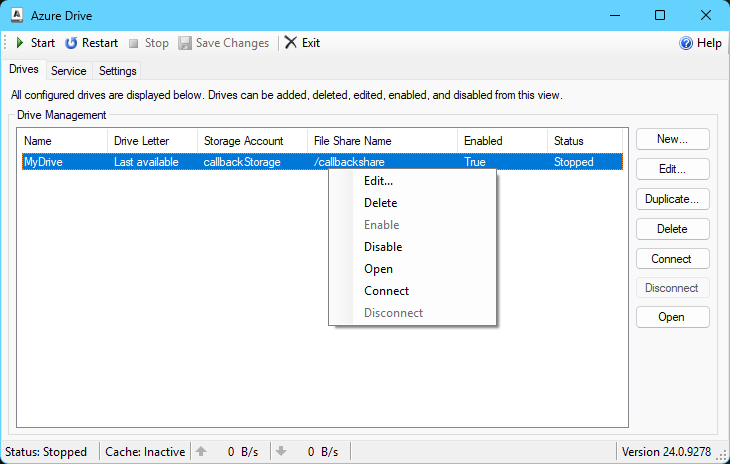
Working with Drives
- The Edit... button opens the Drive Configuration window.
- The Duplicate... button creates a new drive using the settings of the selected drive.
- The Delete button permanently removes the drive from the drive list.
- The Enable button designates a drive to be mounted when the Start button is pressed or the service is started.
- The Disable button disables the drive so it cannot be mounted.
- The Open button opens the remote folder associated with the selected drive.
- The Connect button mounts the selected drive without affecting other drives.
- The Disconnect button unmounts the selected drive without affecting other drives.
Configuration details about each drive are included in drive list. Click on the column headers to sort the drives by the respective category.
Drive Configuration
The drive configuration window is used to configure new drives and edit existing drives. It can be accessed by clicking the New... button in the Drives tab or clicking the Edit... button when a drive is selected in the drive list. Drive-specific configuration for example, the connection settings, the drive name, the drive selection settings, and the startup behavior are specified in this window (additional configuration can be specified in the Advanced tab).
Please be aware that configuration changes will not take effect until you click the Save Changes button in the Callback Drive for Microsoft Azure toolbar, which will save the settings to the Windows registry.
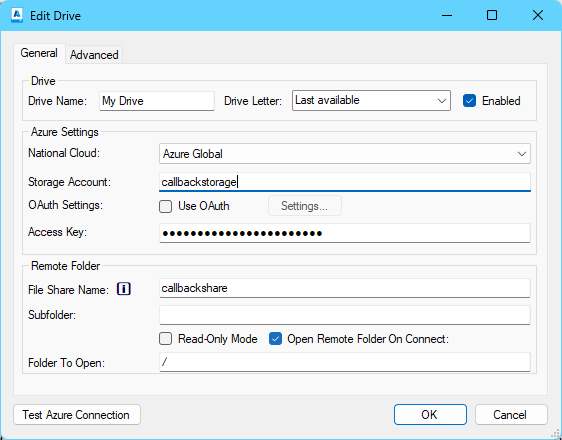
Adding a Drive
- To add a drive, click the New... button on the Drives tab of the main window.
- Enter a name for the drive in the Drive Name field, and if needed, choose the desired drive letter. This will be the drive letter where the remote file system will be mounted.
- Select the National Cloud value that should be used, such as Azure Global (default).
- Enter the name of the storage account that the drive should connect to in the Storage Account field.
- Select how Callback Drive for Microsoft Azure should authenticate with the Azure Storage service:
- If using an access key for authentication, enter your storage account access key in the Access Key field.
- If using OAuth for authentication, check the Use OAuth box .
- Use the File Share Name field to select the file share that should be used.
- The Test Azure Connection button will verify the connection to the Azure Storage service can be successfully established. When configuration is complete press OK to complete the drive configuration.
- Optional Settings:
- The Sub Folder setting may optionally be set to a folder within the file share to be used as the drive root. For instance MyPictures/Birthday. This setting is not required.
- Open Remote Folder On Connect specifies which folder to open in Explorer when the drive is mounted (if any). If set, each time the drive is connected an Explorer window will open at the specified path. Uncheck this box to disable this functionality.
After clicking OK the drive will be added to the drive list. Use the Advanced Settings to set additional configuration settings at the drive level and at the global level.
Advanced
The Advanced tab of the drive settings dialog provides access Settings which are not commonly used.
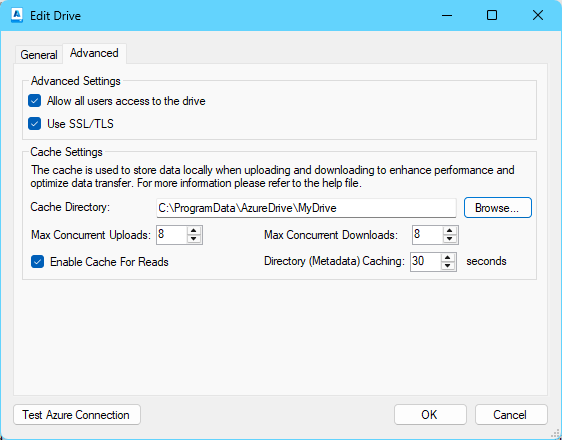
Allow all users access to the drive
This option controls whether drives are visible to other users on the system. When checked (default), drives are accessible by all users on the system. When unchecked, the drive is only accessible by the account under which Callback Drive for Microsoft Azure is running.
Note: this setting should not be disabled when running as a Windows Service. When running as a Windows Service with sharing disabled, only the identity of the Windows Service itself will be able to access the drive (typically the Network Service identity). For more information see Shared Drives.
Handle case-sensitive filenames
This option controls whether Callback Drive for Microsoft Azure should treat file requests as case-sensitive (treating uppercase and lowercase letters as being different). This is only applicable if your server's filesystem is case-sensitive.
To use this setting you must disable case-insensitivity in Windows by creating a value in the registry called HKEY_LOCAL_MACHINE\SYSTEM\CurrentControlSet\Control\Session Manager\kernel\obcaseinsensitive (DWORD) with a value of 0. Most Windows applications are not prepared to handle filenames in a case-sensitive manner so using case-insensitive apps may result in unexpected behavior.
This setting should only be enabled if there is a specific reason to do so.
Force rename if the target file already exists
This setting determines whether or not to forcefully rename a file if the destination file already exists. By default, renaming a file will fail if the destination file already exists.
If enabled and the destination file already exists, the destination file will be renamed to have a temporary extension as a backup. The original file will be renamed to the destination file and the temporary file will be deleted. If the rename operation fails for any reason the temporary file is renamed back to the destination file so effectively no changes occur when the rename fails.
Permissions Settings
This setting controls the Unix permissions value for creation of files and folders on the remote system. If the remote host is not a Unix machine or does not allow specifying file permissions explicitly, then changing this setting will have no effect.
All operations performed against the virtual drive will be performed against the remote host using the user credentials provided in Drive Configuration. Note that changing the permissions values influences who may access the file on the remote machine. This is also configurable via the DefaultFilePermissions and DefaultFolderPermissions settings in the registry under Drives.
Proxy Settings
If a proxy is required for connecting to the server, you can provide drive-specific proxy settings here. The application supports the following types of proxies:
- HTTP Tunnel (most common)
- SOCKS4
- SOCKS5
Specify the Proxy Type, Address, Port, and, if applicable, the Username and Password. These settings are unique to each drive and will only be used when establishing a connection with that specific drive. If these settings are defined, they will override the global proxy settings (see Settings) for that individual drive. If these settings are not specified, the global proxy settings will be utilized during the connection.
You can optionally enable the Password Prompt checkbox, which will prompt the user for the drive-level proxy password each time the associated drive attempts a connection. In this case, Proxy Password will not be utilized.
Use SSL/TLS
This setting specifies whether SSL/TLS is enabled for the connection. The default value is enabled.
Cache Settings
See Caching Information for more information.
Cache Directory
This setting specifies the location on disk where data will be stored. This is populated automatically, but may be changed if desired.
Max Concurrent Uploads
This setting specifies the maximum number of simultaneous upload operations that can be in progress at any time. The default value of 8 should work well in most cases. Large values in this setting will increase the number of simultaneous threads in the upload operation.
Max Concurrent Downloads
This setting specifies the maximum number of simultaneous downloads that can be in progress at any time. The default value of 8 should work well in most cases. Large values for this setting will increase the number of simultaneous threads in the download operation. Note: Using a large value may result in intermittent errors from the Azure Storage service which will result in the upload/download operation being retried.
Enable Cache For Reads
This setting controls whether the requested content will be stored locally to speed up subsequent read operations against the files.
Directory (Metadata) caching
This setting controls the lifetime of files and directories returned during directory enumeration. Additionally, it controls the lifetime of metadata serviced from the cache. Low values for this setting mean the cache contents expire quickly and will be fetched from remote storage more frequently. High values for this setting will provide a more responsive experience browsing the virtual drive. The default value of 30 seconds should work well in most cases.
Import and Export
Callback Drive for Microsoft Azure offers convenient ways to migrate application settings from one system to another. Please note that this migration pertains exclusively to your client settings and does not involve transferring the contents of the virtual drive.
Exporting Settings
To export your settings, follow these steps:
- Navigate to the Settings tab within the application.
- Click the Export link to initiate the settings export process.
- Specify the location and filename where settings will be saved. By default, the settings will be stored in INI file format.
Importing Settings
To import settings from an existing file, follow these steps:
- Navigate to the Settings tab within the application.
- Click Import link to start the import process.
- Specify the filename of the .ini file you want to load your settings from.
Note on Sensitive Information
Sensitive fields such as passwords will be decrypted as part of the export process and stored in plaintext in the .ini file.
Additional Configuration
The Settings tab of the defines application-wide settings. Settings such as log settings, reconnection logic, etc. are controlled here.
Advanced settings are available through the Windows Registry which allow setting infrequently used values.
Settings
The Settings tab is used to configure application-wide settings. Please note that configuration changes will not take effect until you click the Save Changes button in the Callback Drive for Microsoft Azure toolbar. Options specific to Drives are configured via the Drives tab.
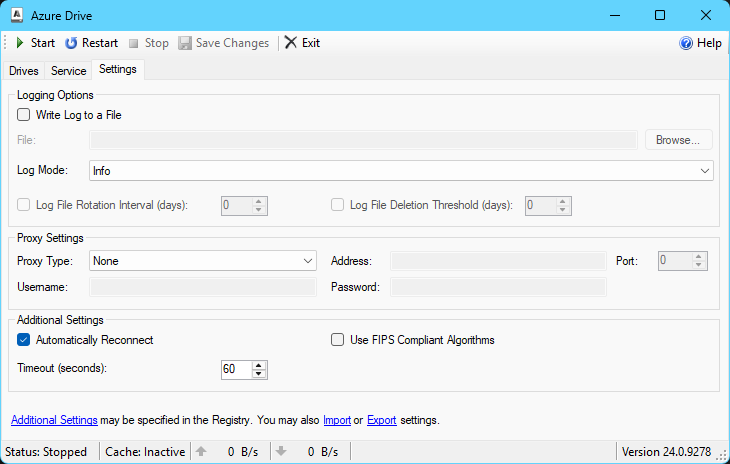
Logging Options
These options can be used to configure the application's logging features.
- Write Log to a File checkbox defines whether logs are written to a file. By default logs are not written to a file and are only available in the Service tab.
- Log Mode defines the verbosity of the logs generated by the application. The following Log Mode values are supported:
- Off - Nothing will be logged.
- Error - Only errors will be logged.
- Warning - Additional warning information will be logged.
- Info - General information about the status of the connection will be logged.
- Verbose - Logs additional information about the connection and detailed protocol information.
- Debug - Logs detailed debug information, including raw data.
- Log Rotation is available when logging to a file. The logs may be rotated after a specified number of days, and the application can also be configured to automatically delete log files older than a specified number of days. When a log is rotated the existing log file will be renamed to include the last date for which the log applies. For instance myfile.log may be renamed to myfile-2020-07-15.log. The date portion of the rotated log name is in the format yyyy-MM-dd.
Connection Settings
The settings in this section allow granular control over the connection management. In most cases the settings specified here should not be adjusted. The default settings enable automatic reconnection in the case where the connection is dropped.
- Automatically Reconnect specifies whether the application will attempt to automatically reconnect to the server if the connection is lost. When enabled, the application will attempt to reconnect indefinitely every 5 seconds by default.
- Timeout defines the number of seconds to wait for a response when a request is made. If no response from the server is received after Timeout seconds an error occurs.
For more advanced connection settings, please see Advanced Settings.
Proxy Settings
If a proxy is required to be used when connecting to the server, the proxy connection details may be specified here. The application supports the following types of proxies:
- HTTP Tunnel (most common)
- SOCKS4
- SOCKS5
Specify the Proxy Type, Address, Port, and, if applicable, the Username and Password. Note that these are global proxy settings and will be used when establishing a connection for each drive. However, you may customize the proxy settings for specific drives to override the global settings within the Advanced tab.
Caching Information
All our drive products use various types of caching. Caching is a complex topic and the actual observed behavior can vary. Depending on the specifics of a situation, multiple different actors may be involved.
Callback Drive for Microsoft Azure caching is optional and enabled by default. Caching refers to application-agnostic logic that holds pieces of files on disk and uploads them later. It might be beneficial in certain situations to decrease the number of round trips, improve transmission speed, or improve responsiveness of the virtual disk. The default behavior of Callback Drive for Microsoft Azure is to translate I/o requests from the operating system directly into protocol messages representing file system operations.
Cache Overview
The cache is a storage location for file content and metadata. When applications interact with files on the virtual drive, they might behave differently. The cache mediates access to allow complete files to be uploaded regardless of how they were written. It also helps reduce the overhead of transmitting all operations received from the OS.
Callback Drive for Microsoft Azure will store cache files in the location specified by the Cache Directory setting in the Advanced tab of the drive configuration page. The default location is .
File Read
When an application reads a file on the drive, we will start multiple download threads to download the requested byte range and subsequent chunks. If the file is small, then the first thread will download the entire content. Once the file is closed, it is removed from the cache.
The CacheEnabledForRead setting in the registry controls whether the requested content from read operations will be stored in the Callback Drive for Microsoft Azure file cache. The CacheConcurrentDownloadThreadsPerFile configuration defines how many concurrent download threads can be active at the same time (one thread per chunk).
If the size of the file being read is smaller than CachePreDownloadSmallFileSizeLimit, the cache will pre-download other small files in alphabetical order in the background. The maximum size for files that will be pre-downloaded is controlled by the CachePreDownloadSmallFileSizeLimit setting. The maximum count of small files that will be pre-downloaded is controlled by the CacheConcurrentDownloadFileCount setting.
File Write
Once the file system driver receives a request to write a file, a corresponding cache file is created with the same size as the original. The modified byte ranges are noted in the cache metadata.
If an application writes to a file on the drive and the file is smaller than CacheFileUploadDelayThreshold, and the entire file content is modified, then the file will be uploaded as soon as the file is closed. If only a piece is modified, then after the file is closed, the entire content will be downloaded and the modifications applied to it. Then the entire file will be uploaded.
If an application writes to a file on the drive and the file is larger than the CacheFileUploadDelayThreshold, then the cache will first ensure the chunks of the file are ready to be uploaded. Any chunks of the file which are partially modified will be first downloaded, then modifications are applied to them. All modified chunks are uploaded after the file has been closed and CacheFileUploadDelay seconds have passed without any additional operations on the file.
File Information
The OS will ask for file information frequently. When CacheEnabledForRead is turned on, Callback Drive for Microsoft Azure will store file metadata such as size, creation time, and last modified time for a short time specified by the "Directory (Metadata) caching" setting, which corresponds with the CacheInfoValidityTime configuration setting in the registry. If the OS sends subsequent requests for file information during this validity interval, the request will be serviced from the cache without requiring another round trip.
Separate from application-level caching, the file system driver will cache file information and service requests from the OS to improve the responsiveness of the virtual drive. This is controlled by the UseMetadataCache configuration setting.
Directory Information
Regardless of the "Enable Caching" checkbox, Callback Drive for Microsoft Azure will store the results of previous directory listing requests for a short time specified by the "Directory (Metadata) Caching" setting, which corresponds with the CacheInfoValidityTime configuration setting in the registry. If the OS sends subsequent requests during this validity interval, the request will be serviced from the cache without requiring another round trip.
Shared Drives
Callback Drive for Microsoft Azure allows drives to be shared among all local users or restricted to the current user. This is controlled by the "Allow all users access to the drive" setting found in the Advanced tab of the Drive Configuration window. It is also controlled by the Shared registry setting for a particular drive (see Drives for more information). When this setting is enabled, the drive is accessible to all local users on the machine. When disabled, the drive is only accessible by the account under which Callback Drive for Microsoft Azure is running.
Accessible to All Users
When "Allow all users access to the drive" is enabled Callback Drive for Microsoft Azure creates a virtual drive accessible to all user sessions. The application maintains one connection to the server per drive and all file system operations that occur use the existing connection. Any user that interacts with the drive inherits the credentials of the connection to work with files on the drive. Settings for the application and drives can be specified in a subkey of the HKEY_LOCAL_MACHINE hive to indicate the settings apply system-wide to any user interacting with the drive.
Restricted to the Current User
When "Allow all users access to the drive" is disabled the drive is only accessible in the current user session. Attempting to access the drive from another user session will cause Windows to throw a "Cannot find drive." error message.
See Also: Isolated Mode
Isolated Mode
Callback Drive for Microsoft Azure can be launched with a command line flag to indicate all settings should be completely separate for each local user account. The /isolated flag controls this behavior (see Running Callback Drive for Microsoft Azure for usage examples). When this flag is specified each local user will be able to manage their own drive list and application settings. The user's list of drives and application settings will persist across logging in and logging out.
This flag will tell Callback Drive for Microsoft Azure to read application configuration and drive configuration from the HKEY_CURRENT_USER hive instead of the HKEY_LOCAL_MACHINE hive. When this flag is specified and a new instance is created, it is called an "isolated instance" or "HKCU instance". When a new instance is created without this flag it is called a "global instance" or "HKLM instance".
The default values of configuration settings are the same regardless of whether you are running an HKCU or HKLM instance. For example, drives are shared among all local users by default. It is a common pitfall to think an isolated instance will only create drives that are private - but that is not the case. To create a private drive in isolated mode turn off the "Allow all users access to the drive" setting as discussed in Shared Drives. Below is a table to illustrate the interaction between shared drives and isolated mode.
| Launch mode | Shared setting | Description |
| Isolated | Enabled | Configuration is per-user and drives are accessible to everyone. |
| Isolated | Disabled | Configuration is per-user and drives are only accessible in the current user's session. |
| Normal | Enabled | Configuration is system-wide and drives are accessible to everyone. |
| Normal | Disabled | Configuration is system-wide but drives are only accessible in the current user's session. |
Isolated mode is useful in environments where each user needs to mount a drive with their own credentials. Drives can be configured and started manually by each end user or via an automated logon script. This allows many isolated instances to be running at the same time but only one global instance can ever be running at a time. One important note: running as a Windows Service is not possible in an isolated instance.
Advanced Settings
Advanced options for Callback Drive for Microsoft Azure are stored in the Windows registry in HKEY_LOCAL_MACHINE\SOFTWARE\callback\AzureDrive\24. This registry key holds settings that are available for Callback Drive for Microsoft Azure globally. Sub-keys at this path hold settings for individual drives.
The following keys hold configuration information:
| Registry Key | Applicable Settings |
| HKEY_LOCAL_MACHINE\SOFTWARE\callback\AzureDrive\24 | Global settings for the application. |
| HKEY_LOCAL_MACHINE\SOFTWARE\callback\AzureDrive\24\Drives | Drives hold drive specific settings. |
The following values can be configured within the root HKEY_LOCAL_MACHINE\SOFTWARE\callback\AzureDrive\24 registry key:
| Name | Type | Description |
| DeleteLogDays | DWORD | Specifies the number of days that log files will remain before being deleted. Only applies if RotateLogDays is greater than 0. If set to 0, old logs will not be deleted. |
| ForceFileClose | DWORD |
Specifies whether to force the closure and subsequent update of the encrypted file on disk after the last handle to the file is closed. In general the application will update the header of the encrypted file on disk when the file is closed. In some cases the system may not close the file immediately after the last handle is closed which results in the file on disk not being updated in a timely manner. This setting forces the closure of the file after the last handle is released. Possible values are:
|
| LogFile | String | Contains the path to the log file. |
| LogMode | DWORD | Determines the level of logging:
|
| LogPort | DWORD | The SysLog port that will be used to communicate between the service and the UI when Callback Drive for Microsoft Azure is running as a service. |
| LogToFile | DWORD | Determines whether or not the log will be written to a file. The file itself is specified by LogFile.
|
| MaskSensitiveData | DWORD | Determines whether or not passwords will be masked in the log.
|
| MaxLogLines | DWORD | Determines the maximum number of lines that will be stored in the Log window in the Service tab. |
| MountTimeout | DWORD | Determines how long (in seconds) Callback Drive for Microsoft Azure will wait for Windows to mount a drive without reporting an error. The default is 20 seconds when this value is not present in the registry. |
| PasswordEncryptionMethod | String | Determines how passwords are encrypted for storage. The default value is Auto. Possible values are:
|
| PromptForRegPermissions | DWORD | Determines if Callback Drive for Microsoft Azure will ask for registry permissions if it does not have them when it tries to write to the registry.
|
| RotateLogDays | DWORD | Specifies how many days Callback Drive for Microsoft Azure will use a log file before rotating to a new log file. If set to 0, the log file will never rotate. |
| RunAsService | DWORD | Determines whether or not Callback Drive for Microsoft Azure will run as a service. |
| ShowDotFiles | DWORD | Determines whether files that start with a dot or period (.) are returned in a directory listing.
|
| HideDotFiles | DWORD | Determines whether files that start with a dot or period (.) are marked as hidden when returned in a directory listing.
|
| IgnoredDirs | String | Specifies a comma-separated list of folders should be ignored by the virtual drive. Each folder included in the list cannot be created on the virtual drive and will not be returned in directory listings. Please specify the folder relative to the root of the drive.
NOTE: Use with caution. When the system asks us to create these folders we will respond with SYSERR_CANNOT_MAKE. Applications or system components that rely on these filesystem operations may behave unexpectedly.
|
| IgnoredFiles | String |
Specifies a comma-separated list of files for which requests should be ignored. Windows may make frequent informational requests for files it needs, such as desktop.ini. If the request from the operating system matches one of the files in this list, the request will not be sent to the S3 provider. For each file on this list, we will service the system's request without performing the operation against remote storage. We respond by telling the system the file does not exist for simplicity.
|
| UseMetadataCache | DWORD | Specifies whether Callback Drive for Microsoft Azure will use caching for file metadata and directory enumeration entries. Disabling will cause Callback Drive for Microsoft Azure to re-download this information when it is requested by Windows and will slow performance.
|
| LogPackets | DWORD | Determines whether detailed protocol-level packet contents are written to the log. Note that the additional output from this mode will slow operation considerably, so it is recommended that it only be enabled when necessary to diagnose an issue.
|
| LocalHost | String | Specifies the local IP address of the network interface to use when connecting. This settings is typically only useful in machines with multiple network interfaces. |
| ProxyChecked | DWORD | Specifies whether or not the proxy settings are enabled. |
| ProxyHost | String | Specifies the host that Callback Drive for Microsoft Azure will use to connect to the proxy. |
| ProxyPassword | String | Specifies the password that Callback Drive for Microsoft Azure will use to connect to the proxy. |
| ProxyPort | DWORD | Specifies the port that Callback Drive for Microsoft Azure will use to connect to the proxy. |
| ProxyType | DWORD | Specifies the type of proxy that Callback Drive for Microsoft Azure will connect to.
|
| ProxyUsername | String | Specifies the username that Callback Drive for Microsoft Azure will use to connect to the proxy. |
| ReconnectAttempts | DWORD | Specifies the number of times Callback Drive for Microsoft Azure will attempt to reconnect if the connection to the server is lost. |
| ReconnectInterval | DWORD | Specifies the time (in seconds) between attempting another reconnection to the server. Default is 5 seconds. |
| Timeout | DWORD | Determines how many seconds Callback Drive for Microsoft Azure will wait for a response from the server before ending the connection. |
| OAuthWebServerCertPassword | String | If the certificate store is of a type that requires a password, this registry setting is used to specify that password in order to open the certificate store. |
| OAuthWebServerCertStore | String | The name of the certificate store used for the embedded web server if OAuthWebServerSSLEnabled is set to true and OAuth is being used. |
| OAuthWebServerCertSubject | String | The subject of the certificate used for the embedded web server if OAuthWebServerSSLEnabled is set to true and OAuth is being used. The certificate subject is a comma separated list of distinguished name properties and values. For instance "CN=www.server.com, OU=test, C=US, E=support@callback.com". |
| OAuthWebServerCertType | DWORD | The type of certificate store for the embedded web server if OAuthWebServerSSLEnabled is set to true and OAuth is being used.
|
| OAuthWebServerPort | DWORD | If OAuth is being used, this setting can be set to modify the port that the embedded web server listens for the response from the authorization server on. By default, a free port will be chosen. |
| OAuthWebServerResponseTimeout | DWORD | Specifies how long the application will wait while OAuth is being completed before timing out. By default, this setting is set to 180 (3 mins) but can be modified to shorten or lengthen the time. If the web server should listen forever, then set this setting to 0. |
| OAuthWebServerSSLEnabled | DWORD | If using OAuth authentication, then the application will need to host a web server on localhost to get a response from the authorization server. By default, this web server will accept plaintext connections but if SSL is required, setting this setting to 1 will enable the server to use SSL. See the SSOWebServerCert* settings for providing the web server with it's SSL certificate. |
Drives
The following values can be configured independently for each drive, at HKEY_LOCAL_MACHINE\SOFTWARE\callback\AzureDrive\24\Drives\{Drive Name}:
| Name | Type | Description |
| DriveLetter | String | Contains the drive letter where the drive will be mounted (e.g. "Z:"). |
| DriveName | String | Contains the name that will be displayed for the drive. |
| DriveType | DWORD | Determines the type of drive that will be mounted:
|
| Enabled | DWORD | Determines whether or not the drive will be mounted when Callback Drive for Microsoft Azure is started.
|
| Index | DWORD | The position of the drive in the list of drives. |
| OpenRemoteFolder | DWORD | Determines whether or not Callback Drive for Microsoft Azure will automatically open a folder after mounting the drive.
|
| OpenSpecifiedFolder | String | Contains the folder that Callback Drive for Microsoft Azure will open if OpenRemoteFolder is enabled. |
| ProxyHost | String | Specifies the host that Callback Drive for Microsoft Azure will use to connect to the proxy. |
| ProxyPassword | String | Specifies the password that Callback Drive for Microsoft Azure will use to connect to the proxy. |
| ProxyPort | DWORD | Specifies the port that Callback Drive for Microsoft Azure will use to connect to the proxy. |
| ProxyType | DWORD | Specifies the type of proxy that Callback Drive for Microsoft Azure will connect to.
|
| ProxyUsername | String | Specifies the username that Callback Drive for Microsoft Azure will use to connect to the proxy. |
| PromptForProxyPassword | DWORD | When this setting is enabled, the application will prompt the user for the drive-level proxy password, which will be used to connect to the proxy specified with the drive-level proxy settings.
|
| ReadOnly | DWORD | Determines whether or not Callback Drive for Microsoft Azure will mount the drive in read-only mode.
|
| RemoteRoot | String | Contains the folder on the server that Callback Drive for Microsoft Azure will use as the root of the mounted drive. |
| Shared | DWORD | Determines whether or not other users can access the mounted drive.
|
| CaseSensitiveNames | DWORD | Enabling this setting will turn on case-sensitive mode in the virtual drive. The drive will advertise to Windows that it is sensitive to filename casing. This will allow some applications to work with files on the drive in a case-sensitive manner. Please keep reading for more information.
Windows treats file and directory names as case-insensitive. FOO.txt and foo.txt are treated as equivalent files. Although there are mechanisms to configure case-sensitivity in Windows, some applications may still make the assumption that the file system is case-insensitive. It is not uncommon for applications to transform filenames to use all upper or lower case. Please see the Microsoft Documentation for more information. It is required for user-mode code of Windows to set the obcasesensitive setting to 0, in order to perform operations in a case-sensitive manner. Despite this setting, applications may assume the file system is case-insensitive. There is not a magic bullet to turn everything into case-sensitive. Applications may stop working in unexpected places. By default, the virtual drive will advertise to Windows that is case preserving while it remains mounted. If the drive is started and then stopped and started again, you may see the case preserving is not persistent. For performance reasons we do not perform extra search operations to ensure the persistence of case preserving across stopping and starting the drive.
|
| CacheOnlyFiles | String |
A comma-separated list of filemasks that will not be created on the remote server. Note: This setting is only applicable when CacheDirectory is set. Any files matching the pattern specified by this setting will not be uploaded to the remote server but will be accessible to applications locally. This is useful in situations where applications may create temporary files that do not need to be uploaded. The * wildcard character may be used. For instance to exclude all .tmp and .dat files a value of *.tmp,*.dat would be used. This setting only applies to files, it does not apply to directory names. This setting is not case sensitive. NOTE: The value provided in this setting will affect only new files which are created directly and not the files which are existing on the storage then renamed or existing files which are deleted. If a file is renamed to an excluded value, then subsequent reading and writing will only be performed against the local copy. |
| QueryAvailableSpace | DWORD | Whether to query the remote server for available space when connecting. Possible values are:
|
| FixedAvailableSpace | QWORD |
Specifies a fixed value (in bytes) to report as the available disk space. This is useful in environments where the server does not support disk space queries and users prefer to display a value other than the default fallback (7.99 EB). By default, this value is 0. It will only be used if set to a positive value and QueryAvailableSpace is disabled. |
| CacheDirectory | String |
The local directory where files will be stored temporarily during read and write operations. The default cache directory is . Note: The default cache directory is visible to all local users on the machine. |
| CacheEnable | DWORD |
This setting controls whether bits and pieces of files will be stored on the local drive to be uploaded at a later time. The default value is 1 and files will be stored at the location specified by CacheDirectory and uploaded in the background. Note: Specifying a value of 0 means that operations on files are performed over a live connection based on filesystem events. |
| CacheInfoValidityTime | DWORD |
The time in seconds for which the current directory information is considered valid. When a file is created Callback Drive for Microsoft Azure will first check to see if the file already exists in the Azure server. Callback Drive for Microsoft Azure will first check the cached listing for the directory. If the directory information is older than CacheInfoValidityTime a request will be made to the Azure server to update the directory listing. If the directory information is newer than CacheInfoValidityTime it will be considered valid and will not result in a separate request to the Azure server. In cases where many new files are copied to a folder in a short period of time this can improve performance since it will reduce the number of requests made to the Azure server. To disable this functionality set the value to 0. The default value is 30. |
| CacheLargeFileSizeMinimum | DWORD |
The minimum size of files in megabytes for which a multipart upload will be used. Files written to the virtual drive which exceed this size will be uploaded to the remote storage as a set of independent parts. This is most helpful for uploading large objects. The default value is 5 (5 MB). |
| CacheFileUploadDelay | DWORD |
The delay in seconds to wait after a file is idle before initiating an upload to the Azure server. A delay may be beneficial in cases where a file is repeatedly accessed. With a delay in place only one copy of the file will be uploaded after the file has been idle for the specified number of seconds. The default value is 5. |
| CacheFileUploadDelayThreshold | DWORD |
The maximum size in bytes of cached files that will be uploaded without waiting for CacheFileUploadDelay to lapse. If a file is smaller than the specified number of bytes it will be uploaded immediately. The default value is 1048576 (1 MB). Note: Specifying a value of 0 means that this setting will not be used and CacheFileUploadDelay will apply to all files. |
| CacheEnabledForRead | DWORD |
This setting only applies when when Whether file content should be cached locally when an application reads the file content from the virtual drive. The default value is 0 and the file is not cached locally until the first write is performed. Specifying a value of 1 means that files will be cached locally for read operations and write operations. If the remote files are very large this could significantly increase the amount of disk space used by the cache. Note: This setting is only applicable if CacheEnable is set to true |
| CacheMaxUploadRetries | DWORD |
The maximum number of retries for the operation. This setting is applicable when data is uploaded from the local cache to the Azure server. If an operation related to the upload fails it will be retried up until the maximum number of retries specified in this setting. The default value is 3. |
| CacheConcurrentUploadFilesMax | DWORD |
The maximum number of files being uploaded simultaneously. The default value is 8 meaning up to 8 files may be uploaded concurrently. Note that each file may use multiple connections to the server, see CacheConcurrentUploadThreadsPerFile for details. |
| CacheConcurrentUploadThreadsPerFile | DWORD |
The maximum number of parallel upload operations per file. If the file is a large file (greater than 5 MB) it will be uploaded using multiple threads to increase performance. This setting controls how many threads can be used to upload individual parts of the file. The default value is 8. |
| CacheConcurrentDownloadFilesMax | DWORD |
The maximum number of files being downloaded simultaneously. The default value is 8 meaning up to 8 files may be downloaded concurrently. Note that each file may use multiple connections to the server, see CacheConcurrentDownloadThreadsPerFile for details. Note: This setting is only applicable if CacheEnabledForRead is set to true |
| CacheConcurrentDownloadThreadsPerFile | DWORD |
The maximum number of parallel download operations per file. This setting controls how many threads can be used to download individual parts of the file. The default value is 8. Note: This setting is only applicable if CacheEnabledForRead is set to true |
| CacheFileDeleteDelay | DWORD |
The number of seconds to wait before deleting an unused file from the cache. After the specified number of seconds have passed if no further activity has taken place on the file it will be deleted from the cache. The default value is 5 seconds. |
| CachePreDownloadSmallFileCount | DWORD |
The number of small files to pre-download. The application will pre-download small files before they have been requested in order to speed up future requests. For instance, if a read request is made for a.txt the application will download b.txt so that when a request is made for b.txt it can be returned quickly. The default value is 4. Files are considered small if they are smaller in size than CachePreDownloadSmallFileSizeLimit. Files which match the criteria are downloaded alphabetically. |
| CachePreDownloadSmallFileSizeLimit | DWORD |
The maximum size of a file (in bytes) to be considered for pre-downloading. This setting works in conjunction with CachePreDownloadSmallFileCount. The default value is 1048576 (1MB) |
| AccessKey | String | The AccessKey used to authenticate with Callback Drive for Microsoft Azure if OAuth is not being used. |
| Account | String | The name of the Azure Storage Account that is being accessed by Callback Drive for Microsoft Azure. |
| Endpoint | String | The national cloud data center's endpoint that are used when making requests to the Microsoft servers. By default, the Global endpoint (core.windows.net) is selected as it is also the default for Azure Storage. |
| FragmentSize | DWORD | The size of each to use when uploading a large file. The drive will first fragment the file into parts with the specified bytes. Then it will upload the parts individually. After all the uploads of the parts are done, Azure Storage will combine the parts again to make the complete file. |
| OAuthClientId | String | This setting should be set when attempting to use an application that was registered separately for Callback Drive for Microsoft Azure. It should be set to the client Id from the Azure Portal that was provided after the new application was registered to allow Callback Drive for Microsoft Azure to access the Azure Storage service. |
| OAuthClientSecret | String | This setting should be set when attempting to use an application that was registered separately for Callback Drive for Microsoft Azure. It should be set to the client secret (if required) from the Azure Portal that was created after the new application was registered to allow Callback Drive for Microsoft Azure to access the Azure Storage service. This is not used if the new application was registered as a public client. |
| OAuthAuthorizationScope | String | This setting should be set when attempting to use an application that was registered separately for Callback Drive for Microsoft Azure. It should be set to the authorization scope that is should be used by the drive when completing authorization. If left blank, the drive will select a default depending the grant type that was configured for the drive. |
| OAuthGrantType | DWORD | This setting should be set when attempting to use an application that was registered separately for Callback Drive for Microsoft Azure. The setting controls grant type that is used when completing OAuth authorization. When set to 0 (default) Callback Drive for Microsoft Azure will attempt to use the authorization code grant type. If set to 1, Callback Drive for Microsoft Azure will attempt to use the client credentials grant type instead. |
| OAuthServerAuthURL | String | This setting should be set when attempting to use an application that was registered separately for Callback Drive for Microsoft Azure. It should be set to the authorization URL that is used to get authorization for the application by a user when the authorization code grant type is being used. |
| OAuthServerTokenURL | String | This setting should be set when attempting to use an application that was registered separately for Callback Drive for Microsoft Azure. It should be set to the token URL that is used to get the access and refresh tokens from the token server. This is the location that an authorization code is exchanged for an access token and refresh token or where the client credentials grant type makes its request for the access token. |
| UseIPv6 | DWORD |
Controls which IP version is used for the connection. These are the valid options:
|
| UseOAuth | DWORD | If set to 1, the drive will use OAuth instead of an access key for making authenticated requests. By default, this setting is set to 0. |
| UseSSL | DWORD | Whether requests to Azure use SSL. Possible values are:
|
| CaseInsensitiveCache | DWORD | This setting controls whether the application adjusts the casing of file names and paths in incoming file system requests to match entries stored in the drive's metadata cache. Possible values are:
Each directory in the virtual drive maintains a collection of files, caching metadata regarding each file. This collection is case-sensitive by default. When enumerating a directory, the collection is populated with object names exactly as returned by the remote storage provider, along with the object metadata (case-sensitive). However, applications interacting with the virtual drive may issue file system requests using different casing (e.g., using a fully capitalized file name). If this setting is disabled, such mismatches can cause errors during file system operations due to case-sensitive look-ups in the managed file collection. In such cases, it will appear the file does not exist in our internal cache, and we are unable to provide the cached metadata to handle the file system request. This can cause unexpected errors navigating into directories (such as the Windows error "Location is not available"), errors creating new files, or errors deleting files. Enabling this setting ensures that cache look-ups are case-insensitive, allowing the application to retrieve the correct entry name (and metadata) regardless of the casing used in the request. Once the correct casing of the file system request has been retrieved, the application will continue as usual, either utilizing the cached metadata, or requesting updated metadata. |
Troubleshooting
If you are having problems with Callback Drive for Microsoft Azure, our support team is here to help. Visit https://www.callback.com/support/submit.aspx to submit a ticket. Please be as detailed as possible about your issue. It is also helpful if you generate and send a log file to support@callback.com.
How to Generate a Log File
- Navigate to the Settings tab.
- Enable Write Log to a File and specify a local file.
- Increase the Log Mode.
- Click the Save Changes button.
- Reproduce the issue.
- Click the Stop button.
Note that the length of time it takes for any operation is increased when Debug logging is enabled. The amount of data logged with this option enabled is substantial. We recommend enabling these settings for debugging purposes only.
Common Issues
Below you will find a list of common issues reported by our customers that you may find useful in troubleshooting a problem.
The Run as a Windows Service checkbox is enabled but drives are not connected upon startup.
All enabled drives should be connected automatically when the machine turns on, but there can be external factors which can cause this to fail. For instance, the system resources are not ready, the machine is multi-homed, policy of anti-virus software, etc.
When troubleshooting behavior with automatic start first ensure that the startup type is set to Automatic (Delayed Start) by opening the Service Control Manager, right-click the Callback Drive for Microsoft Azure service, and open the service properties.
If you have VPN software installed or the machine is multi-homed, then use Advanced Settings to configure the LocalHost setting in the registry. This setting should be set to the IP address of the network interface to use when connecting.
If neither suggestion helps, please gather an event log from the system which is failing and send it to us for analysis. This can be done by opening the Event Viewer, expanding Windows Logs, then save the Application and System logs by right-click and Save All Events As....
Copying certain files causes a prompt specifying "The file XXX has properties that can't be copied to the new location"
The virtual drive created by Callback Drive for Microsoft Azure is of type exFAT. Certain NTFS specific functionality such as alternate data streams are not currently supported and may result in the warning above. Choosing to proceed with the operation when prompted by Windows is safe and does not affect the file content.
System error: No such host is known
No such host error is thrown when the system cannot resolve the endpoint address using the assigned network interface. This can happen if the remote address is malformed, if the default DNS server is misconfigured, if the proxy settings are misconfigured, or if the system is using the wrong network interface.
Check the accessibility of the remote address from the client system using other means (e.g. using the ping utility). Check whether the behavior is specific to the conditions of your network by testing from a different network and system. If the machine has multiple networking interfaces, set the LocalHost value of the Advanced Settings to the IP address of your default network interface.
Why creating a symbolic link doesn't work?
Symbolic links are not supported on the virtual drives created by Callback Drive for Microsoft Azure. By default, the link target is ignored, and the symlink itself is uploaded as a zero-byte file or object containing no useful data.